Got GrapheneOS on your device and want to know how to actually get apps without compromising your privacy? This guide covers the safest way to install your apps.

| debloat_brave() { | |
| echo "Creating policies..." | |
| sudo mkdir -p /etc/brave/policies/managed/ | |
| local debloat_policies="/etc/brave/policies/managed/debloat.json" | |
| if [ ! -f "$debloat_policies" ]; then | |
| sudo touch "$debloat_policies" | |
| fi | |
| sudo tee -a "$debloat_policies" >/dev/null <<'EOF' | |
| { |

GrapheneOS is a security- and privacy-focused mobile operating system built on Android. It runs on Google Pixel hardware and reinforces Android’s security model at every level. As the developers explain, GrapheneOS "starts from the strong baseline of the Android Open Source Project (AOSP) and takes great care to avoid increasing attack surface or hurting the strong security model." In practice, this means every feature is scrutinized for risk: unused hardware is disabled by default, new capabilities are opt-in, and aggressive exploit mitigations are added throughout the OS. The result is an Android variant that sacrifices little usability, but greatly strengthens defenses against both targeted and automated attacks.
Brave is an excellent, privacy-focused browser, but its default configuration comes packed with extra features that many users consider bloat. This guide will walk you through how to get rid of the bloat, hide the ads, and disable background services for a clean, minimal browsing experience.
The default start page and toolbars are crowded with Brave "cards," news feeds, and native crypto shortcuts. Fortunately, the surface-level clutter is easy to hide directly from the UI.
Operations Security (OpSec) is about controlling the information you leak into the world. In an age of data brokers, constant surveillance, and automated tracking, practicing good OpSec is necessary.
Before adopting any of these practices, you must first define your Threat Model.
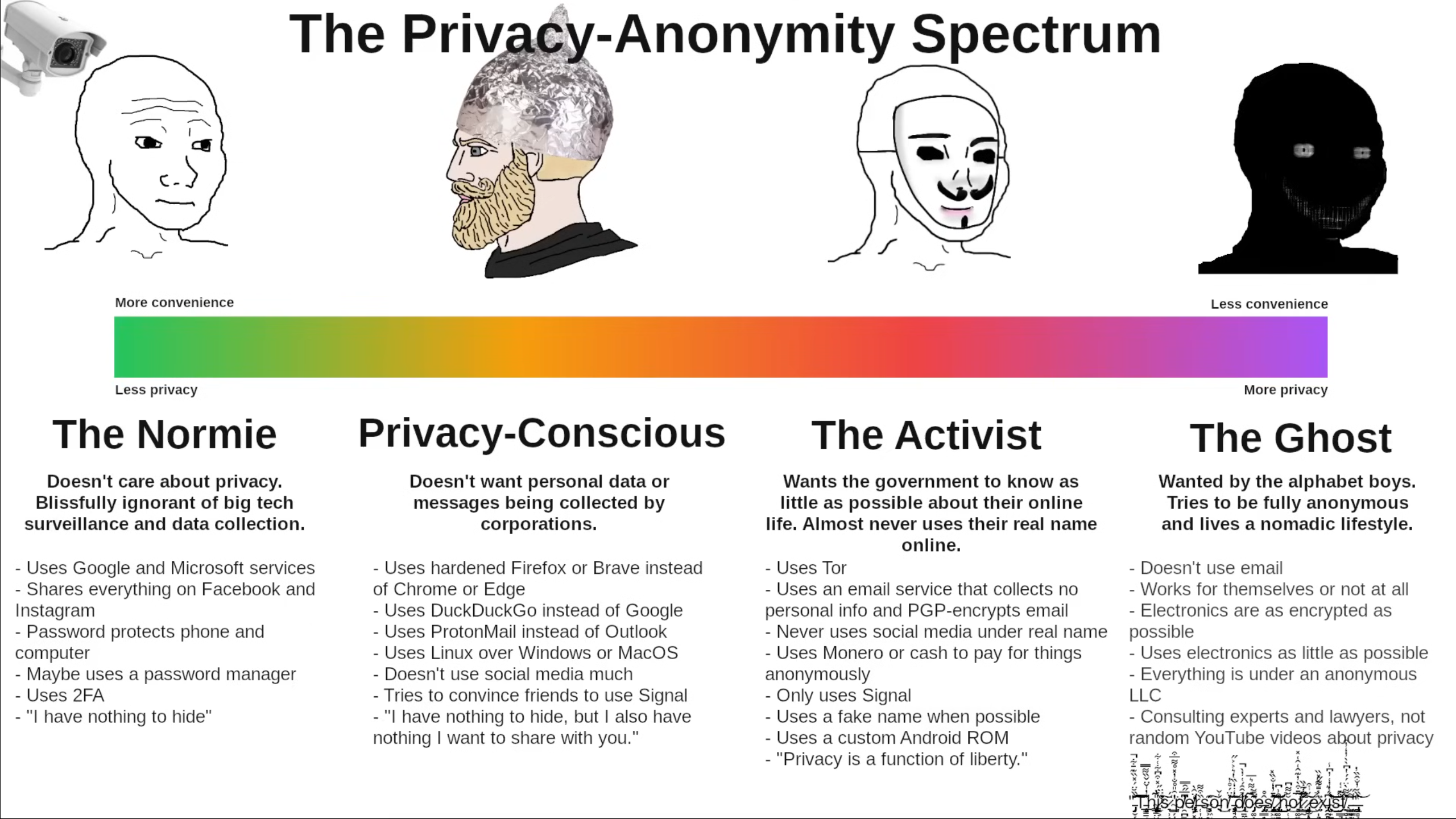 Spectrum from Eric Murphy's YouTube video.


This guide allows you to use the TPM on your computer to decrypt your LUKS encrypted volumes. If you are worried about a cold boot attack on your hardware please DO NOT use this guide with your root volume!
Verify that you have a TPM in your computer:
# systemd-cryptenroll --tpm2-device=list
PATH DEVICE DRIVER

| #---------------GitHub Pages + Namecheap Domain + SSL Cheat Sheet------------# | |
| NOTE: You do NOT need to buy PositiveSSL from Namecheap. | |
| GitHub Pages provides free SSL automatically via Let's Encrypt. | |
| # Namecheap Domain Setup | |
| Buy Domain | |
| Go to namecheap.com, select and buy domain name. | |
| Navigate to DNS Settings | |
| Login to Namecheap → Username dropdown → Dashboard |

Alternative bindings for the 540p using pactl and i3 - Keyboard
 # set laptop display to lower res - thats better
 exec  xrandr --output eDP1 --mode 1920x1080

 # set Numlock to on at login time
 exec --no-startup-id numlockx on

# start pidgin on launch| % RESUME DOCUMENT STYLE -- Released 23 Nov 1989 | |
| % for LaTeX version 2.09 | |
| % Copyright (C) 1988,1989 by Michael DeCorte | |
| \typeout{Document Style `res' <26 Sep 89>.} | |
| %%%%%%%%%%%%%%%%%%%%%%%%%%%%%%%%%%%%%%%%%%%%%%%%%%%%%%%%%%%% | |
| % res.sty | |
| % | |
| % \documentstyle{res} |
